Choosing the right CAD software can feel overwhelming — especially when you're staring at a list of ten tools with names like "CATIA," "PTC Creo," or "Rhinoceros 3D" and have no idea where to start.
I've been there. A while back, I needed to design a simple bracket for a home workshop project. I googled "best CAD software," got completely lost in jargon, downloaded three different programs, and wasted a full weekend before landing on the right one.
In this guide, I'll walk you through the most popular CAD tools available in 2026 — broken down by experience level, budget, and use case — so you can skip the trial-and-error and go straight to designing. Whether you're a curious beginner, a weekend hobbyist, or a working professional, there's a perfect fit for you.
◆ What Is CAD Software — And Why Does It Matter?
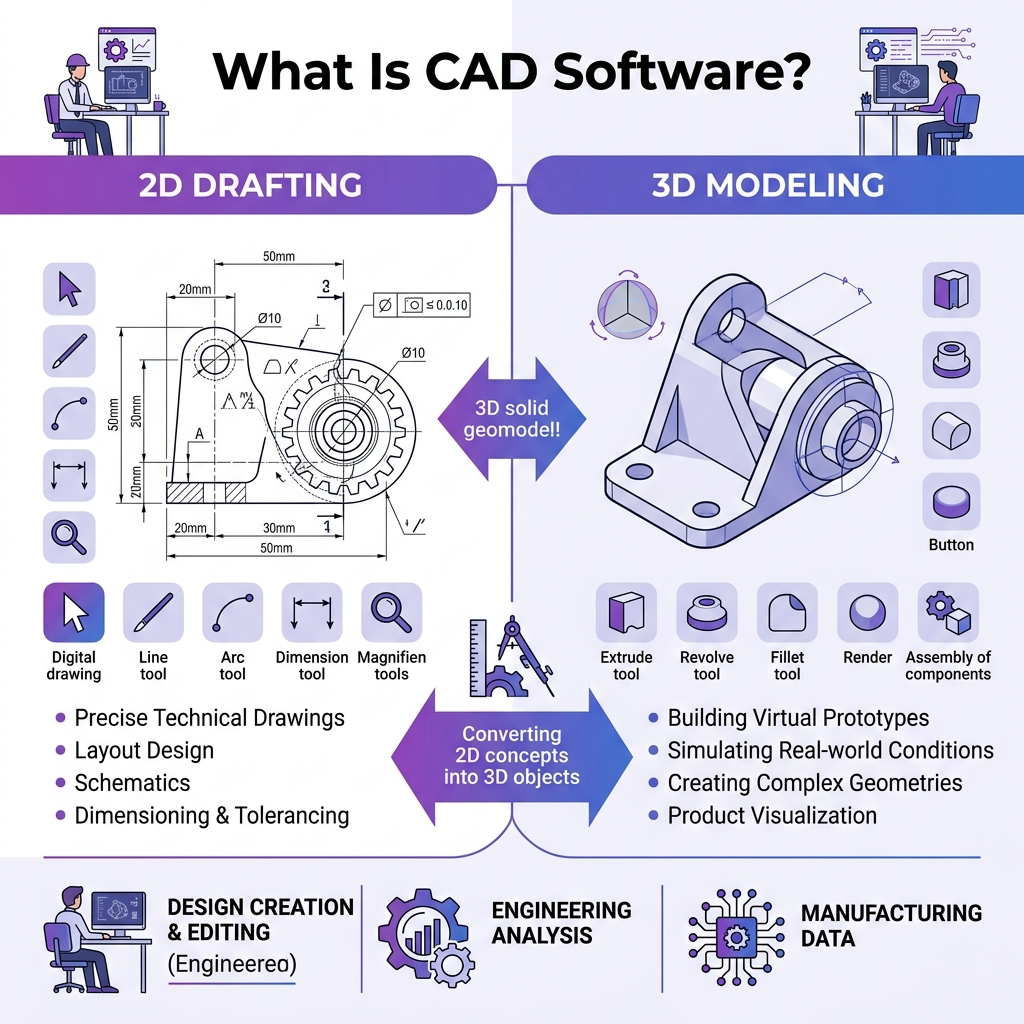
CAD stands for Computer-Aided Design. Simply put, it's software that lets you draw, model, and visualize objects on a computer — in either 2D or 3D. Before CAD, engineers and architects had to do everything by hand on drafting tables. Now, you can design a building, a machine part, or a piece of furniture right from your laptop.
What makes it so powerful? Changes that would have taken days on paper take minutes on screen. You can rotate your model, check measurements, simulate how it behaves under stress, and send it directly to a 3D printer or CNC machine — all without ever touching a physical prototype.
▸ 2D CAD vs. 3D CAD: What's the Difference?
Think of 2D CAD as a digital version of traditional blueprints. You're working with flat lines, shapes, and dimensions — great for floor plans, schematics, and technical drawings. 3D CAD takes it a step further and lets you build a full three-dimensional model you can spin, zoom, and simulate.
▸ Who Actually Uses CAD?

More people than you'd think! Yes, aerospace engineers and car designers use it — but so do furniture makers, jewelry designers, 3D printing hobbyists, architects, teachers, and even kids in school. If you want to bring a physical idea to life on a computer screen, CAD software is your tool.
◆ CAD Software Selection Guide: Know Your Starting Point

Before picking a tool, ask yourself three quick questions. Your answers will narrow down the list from ten options to just one or two that genuinely fit your situation.
▸ Question 1: What's Your Experience Level?
If you've never touched a CAD program before, jumping straight into AutoCAD or SolidWorks is like trying to drive a manual transmission truck before ever sitting behind the wheel. Start gentle — tools like Tinkercad or Fusion 360 (personal/free plan) are specifically designed to ease beginners in without drowning them in menus.
▸ Question 2: What Are You Designing?

Your field matters enormously in this CAD software selection. An architect doesn't need the same tool as a mechanical engineer, and a hobbyist making custom phone cases doesn't need what an aerospace firm uses. Here's a quick mapping to get oriented:
✔️ Architecture & construction: AutoCAD, SketchUp
✔️ Mechanical & product design: SolidWorks, Fusion 360, PTC Creo
✔️ 3D printing & hobby projects: Tinkercad, FreeCAD, Fusion 360 (free plan)
✔️ Aerospace & automotive (enterprise): CATIA, PTC Creo
✔️ 3D rendering & animation: Blender, Rhino 3D
▸ Question 3: What's Your Budget?
The good news: you don't have to spend a dime to get started. Several excellent tools are completely free. The honest news: professional-grade tools can run anywhere from a few hundred dollars a year to several thousand. Here's a realistic breakdown:
◆ CAD Software Selection: Top Picks Broken Down by User Type

Now let's get specific. Here are the tools I'd genuinely recommend depending on who you are and what you're
trying to accomplish.
▸ For Beginners & Students: Start With Tinkercad

Tinkercad is the gateway drug of CAD. It's completely free, runs in your browser (no installation needed), and has an interface so clean that kids in middle school use it regularly. You literally drag, drop, and combine geometric shapes to build 3D objects. No commands to memorize, no complex toolbars.
I spent about three hours on Tinkercad before I felt comfortable enough to move on to something more powerful. It won't do everything — you can't do advanced mechanical assemblies here — but as a first step into the world of design software, it's hard to beat.
▸ For Hobbyists & Makers: Fusion 360 or FreeCAD

If you have a 3D printer at home or you enjoy making things in your garage workshop, Fusion 360 is probably the
most well-rounded tool available. The personal/free plan covers three years for non-commercial use — you get real 3D modeling, CAM toolpaths (for CNC machines), and even basic simulation. That's genuinely impressive for free software.
FreeCAD is the other strong option here — fully open-source and free forever. It shines when you need parametric modeling: set up rules and dimensions for your design, and tweaking one value automatically updates the whole model. It has a slightly steeper learning curve than Fusion 360, but it has a passionate community and excellent documentation to help you along.
▸ For Architects & Interior Designers: AutoCAD or SketchUp

AutoCAD is the industry-standard tool for architects and construction engineers — it's been around since 1982 and is still the most widely used design software in the field. It handles both 2D drafting and 3D modeling, comes with a rich library of pre-built symbols, and integrates well with other tools in the Autodesk ecosystem. The trade-off? It's expensive — around $1,575–$2,095 per year — and the interface takes real time to master.
SketchUp is a more accessible alternative, especially for conceptual work and interior design. It's not as technically rigorous as AutoCAD, but it's faster to learn and has a genuinely enjoyable, intuitive modeling experience. Plans start at $55/year, making it a reasonable option for freelancers and small firms.
▸ For Engineers & Product Designers: SolidWorks or PTC Creo
SolidWorks is the gold standard for mechanical and industrial design. If you're designing machine parts, consumer products, or anything that needs to be manufactured with precision, SolidWorks has the tools to do it right. It handles complex assemblies, simulations, and manufacturing workflows with ease. The student license is surprisingly affordable; professional licenses require a larger investment.
PTC Creo is the more advanced option — used by teams working in high-volume production environments. It now includes AI-powered generative design, meaning you can define your requirements and let the software propose a manufacturable solution. At $3,910+/year, it's an enterprise-level investment, not a casual purchase.
▸ For Artists, Animators & Rendering: Blender or Rhino 3D
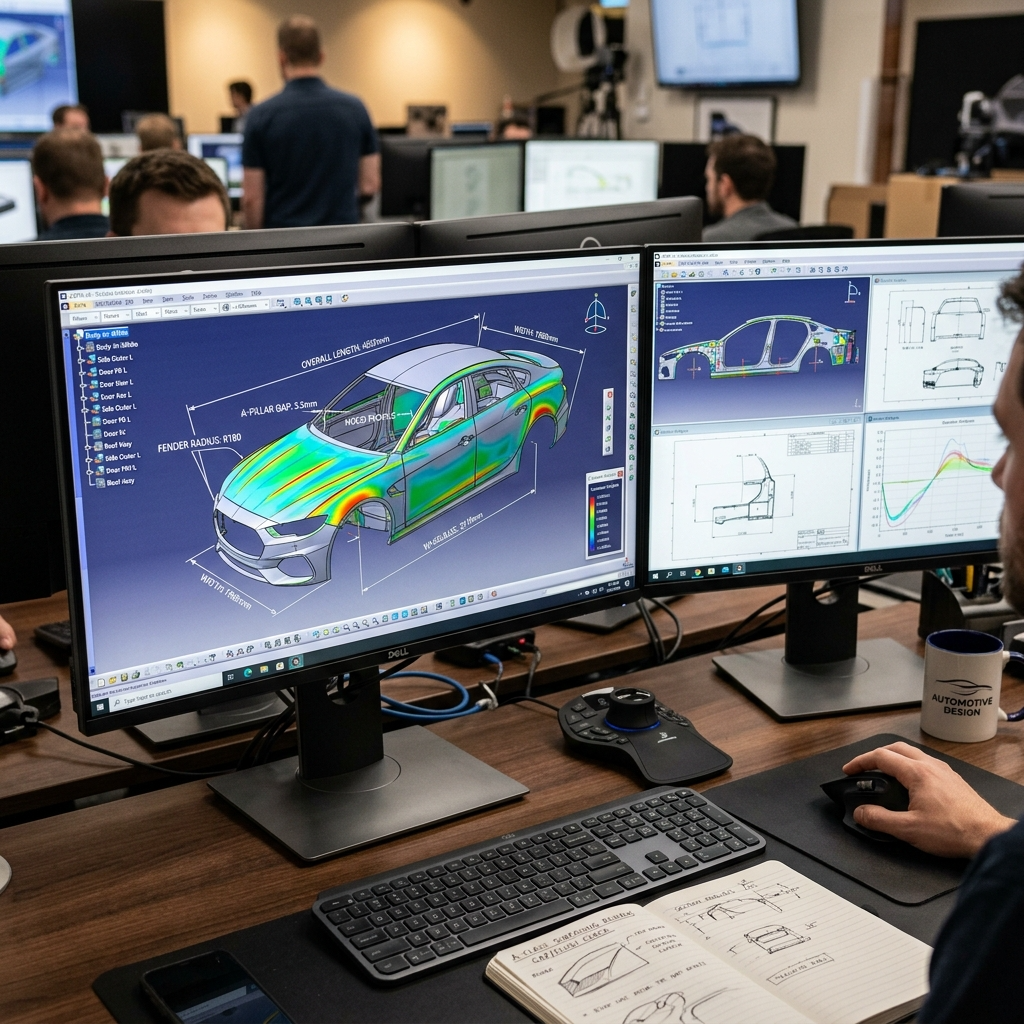
Blender is technically a 3D animation and rendering tool rather than traditional CAD, but it's free, incredibly capable, and widely used for visualizing product concepts before moving to precision modeling. Many designers use it as the final "presentation" layer — modeling the rough idea in a CAD tool and then importing it into Blender for photorealistic rendering.
Rhino 3D sits comfortably between the artistic and engineering worlds. It's a favorite among jewelry designers, industrial designers, and architects who want precision without the rigid workflow of tools like SolidWorks. At $995 as a one-time payment (no annual subscription), it's also one of the better long-term value options.
◆ How to Make Your Final CAD Software Decision

Still feeling unsure? Use this simple decision flow. It's the same thought process I walk through whenever someone asks me which tool to pick.
▸ The 4-Question Decision Flow
✔️ Am I a complete beginner? → Start with Tinkercad (free, browser-based, no stress).
✔️ Am I a hobbyist with a 3D printer or CNC machine? → Fusion 360 (free personal plan) or FreeCAD (open-source).
✔️ Am I in architecture or construction? → AutoCAD if budget allows, SketchUp for a lighter option.
✔️ Am I an engineer or product designer? → SolidWorks is the safe choice; PTC Creo or CATIA for enterprise-level work.
▸ One More Piece of Advice: Always Try Before You Buy
Almost every paid CAD tool on this list offers either a free trial or a free personal use plan. AutoCAD has a 30-day free trial. Fusion 360's personal use plan is free for three years. SketchUp has a free web version. Take advantage of these before committing to a subscription.
Here's a practical tip: spend one or two evenings following beginner tutorials on YouTube for the tool you're considering. If it feels comfortable and enjoyable by the end of day two, that's probably your tool. If you're still frustrated and confused, try a different one — your workflow should feel natural, not like a battle.
◆ Frequently Asked Questions
▸ Q1. Is there a truly free CAD software that professionals can use?
Yes — FreeCAD and Blender are completely free and open-source. Fusion 360's personal use plan is also free for qualifying non-commercial users for three years. These tools are used by real professionals and hobbyists around the world, not just beginners.
▸ Q2. What's the easiest CAD software to learn from scratch?
Tinkercad is widely considered the most beginner-friendly CAD tool available. It runs in your browser, requires no installation, and uses a simple drag-and-drop interface. SketchUp is another strong option if you want something a step up from the very basics. For a more capable tool that's still reasonably approachable, Fusion 360 ranks among the highest for ease of use in independent comparisons.
▸ Q3. Can I use CAD software on a Mac?
Yes, several top tools support macOS: Fusion 360, AutoCAD, SketchUp, Blender, Rhino 3D, and Tinkercad (browser-based) all work on Mac. The major exceptions are SolidWorks and PTC Creo, which are Windows-only. If you're a Mac user working in engineering, Fusion 360 or Rhino 3D are your strongest professional options.
▸ Q4. Which CAD software should I learn to boost my career?
It depends entirely on your industry. AutoCAD is the most recognized skill in architecture and construction job listings. SolidWorks is the go-to credential for mechanical engineering roles. Fusion 360 is increasingly popular among product designers and small manufacturers. CATIA is dominant in aerospace and automotive sectors. When in doubt, look at job postings in your target field — the most frequently mentioned tool is your answer.
▸ Q5. Can I switch CAD software later, or will I have to start over?
You can absolutely switch, and it's easier than you might think. Most CAD tools share fundamental concepts — sketching, extruding, constraining geometry — so skills transfer more readily than you'd expect. File format compatibility has also improved dramatically; many tools import and export standard formats like STEP, IGES, and STL. Starting simple and moving up to more powerful tools over time is a perfectly sensible strategy.
🎬 Wrapping Up
So, there you have it — a practical CAD software selection guide without the jargon overload. Let's do a quick recap of the key takeaways:
✔️ Beginners: Start with Tinkercad — it's free, browser-based, and genuinely fun to use.
✔️ Hobbyists & makers: Fusion 360 (free personal plan) or FreeCAD are the smart picks for 3D printing and CNC projects.
✔️ Architects & designers: AutoCAD for professional-grade 2D/3D work; SketchUp for a more accessible, budget-friendly alternative.
✔️ Engineers & manufacturers: SolidWorks is the industry-trusted choice; PTC Creo and CATIA for enterprise-scale work.
✔️ The golden rule: Always try before you buy — most tools offer free trials or free plans.
Got questions or want to share what you're working on? Drop a comment below — I'd love to hear about your projects! 😊
'캐드공부하기' 카테고리의 다른 글
| What Is CAD? A Complete Beginner's Guide to Computer-Aided Design (0) | 2026.03.17 |
|---|---|
| CAD의 종류와 분야 (0) | 2026.03.13 |
| CAD의 정의와 역사 (0) | 2026.03.13 |
| 치수(Dimension) 기입의 모든 것 - 정확한 도면의 완성 (0) | 2026.03.09 |
| 첫번째 CAD 도면 그리기 - 단계별 실습 튜토리얼 (0) | 2026.03.09 |


