CAD (Computer-Aided Design) is the technology that lets engineers, architects, and designers create precise drawings and 3D models on a computer — no more paper drafting boards needed. If you've ever wondered how a car, a building, or even a simple product was designed before it was built, the answer is almost always CAD.
Whether you're thinking about learning it for the first time, switching careers, or just curious about what it actually is, this guide breaks it all down in plain English. No engineering degree required — promise.
According to Autodesk's official CAD overview, CAD tools are now used in virtually every design and engineering industry on the planet — and the demand for people who know how to use them keeps growing.
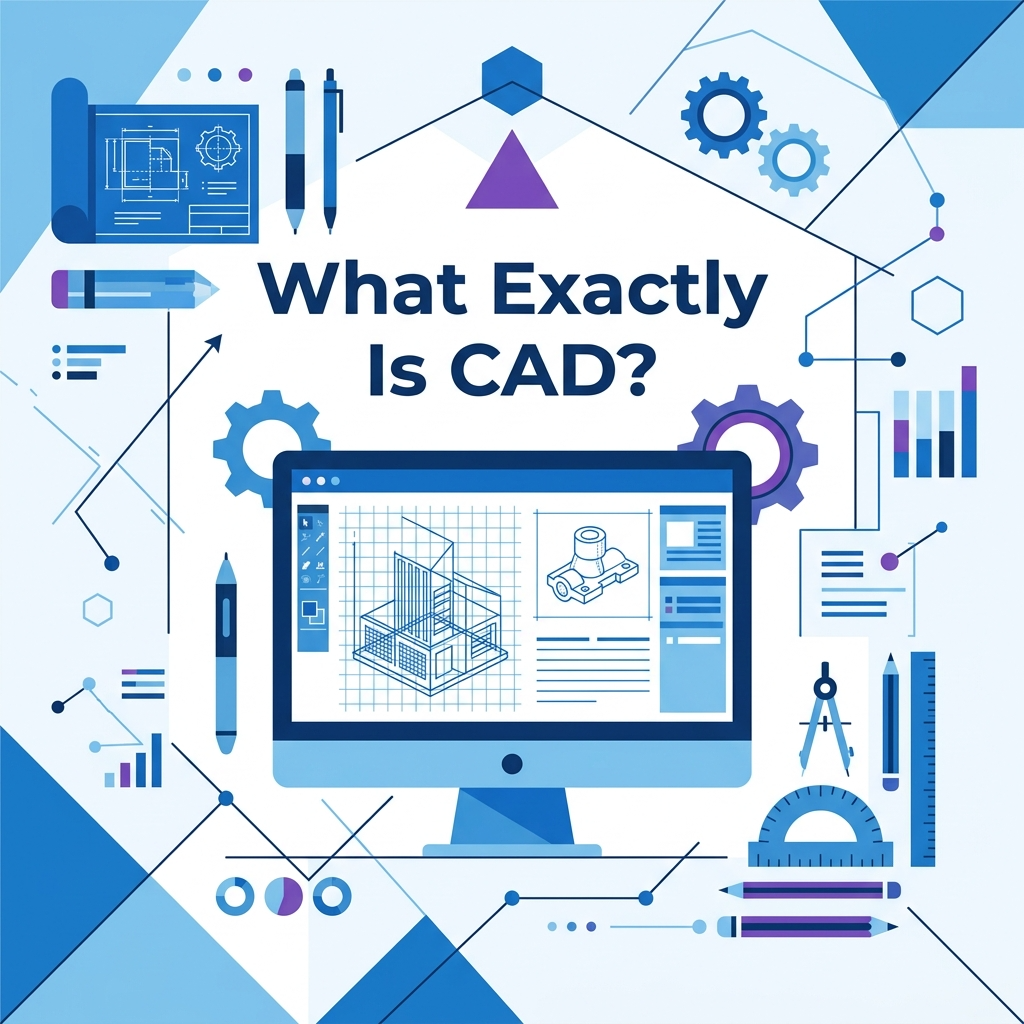
◆ So, What Exactly Is CAD?

CAD stands for Computer-Aided Design. In simple terms, it's software that helps people design things — from tiny mechanical parts to massive skyscrapers — using a computer instead of a pencil and paper.
Before CAD existed, engineers and architects had to draw everything by hand on big drafting tables. It was slow, easy to make mistakes, and really hard to change. CAD replaced all of that with digital tools that are faster, more accurate, and much easier to edit.
▸ The Short Version (In Plain English)
Think of CAD like Microsoft Word — but instead of writing documents, you're drawing designs. You can draw flat 2D shapes (like floor plans) or full 3D models (like a car engine or a coffee mug). And just like Word lets you undo typos, CAD lets you instantly fix design errors without starting over.

▸ CAD vs. Hand Drawing: What Changed?
◆ The 4 Main Types of CAD You Should Know

CAD isn't just one single thing. There are different types of CAD software designed for different jobs. Here's a quick breakdown of the four main ones — and which kind of work each is best for.
▸ 2D CAD — Flat Drawings
This is the most basic type. You create flat, top-down drawings — like floor plans, electrical diagrams, or engineering blueprints. Think of it as a very precise digital version of drawing on graph paper. AutoCAD LT is the most well-known tool for 2D CAD work.
▸ 3D CAD — Full Solid Models
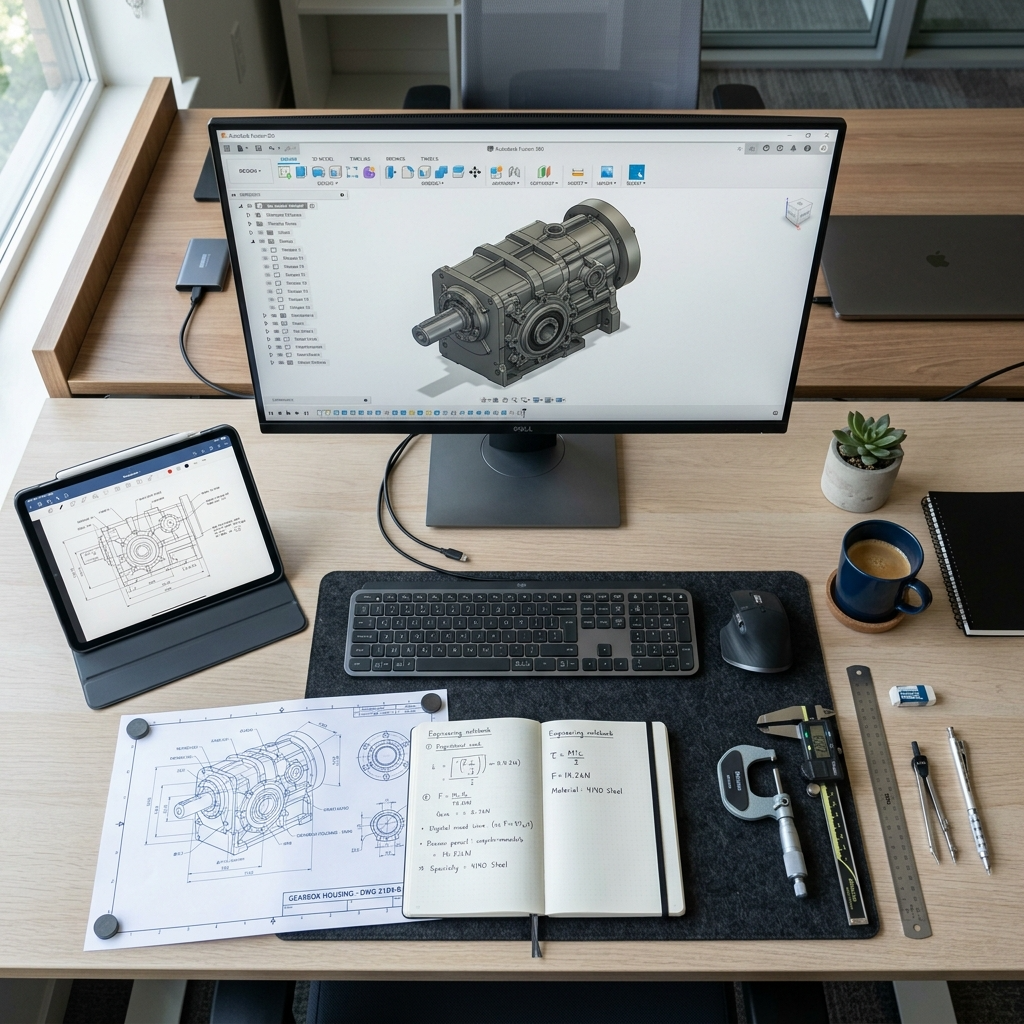
This is where CAD gets really impressive. You build full three-dimensional models of objects — you can rotate them, zoom in, and even run simulations to see how they'll perform under stress or heat. Product designers, mechanical engineers, and architects use 3D CAD every single day. Popular tools include AutoCAD, Fusion 360, and SolidWorks.
▸ Parametric CAD — Smart, Editable Design
This is the advanced version of 3D CAD. Every part of your design is connected by rules and parameters. So if you change one measurement, the whole design automatically updates. It saves enormous amounts of time in engineering and manufacturing projects. SolidWorks and Autodesk Inventor are popular examples of this.

▸ Direct Modeling CAD — Push & Pull Design
Instead of working with pre-set rules, direct modeling lets you just grab a face or edge of a 3D model and push or pull it into shape — kind of like working with digital clay. It's more intuitive for beginners and is great for quick concept design. SpaceClaim is a well-known direct modeling tool.
◆ Where Is CAD Actually Used? (Real Industries)

One thing that surprises a lot of beginners is just how many industries rely on CAD software every day. It's not just for car factories and skyscraper blueprints — although yes, it's absolutely used for those too.
▸ Architecture & Construction
Architects use CAD to draw floor plans, elevations, and full 3D walkthroughs of buildings before a single brick is laid. Tools like AutoCAD and Revit are industry standards. If you've ever toured a virtual model of a new apartment building online, that was CAD-based design.

▸ Mechanical & Product Engineering
Every single product you own — your phone, your car, your laptop — was designed using CAD at some stage. Engineers use it to design individual parts, assemble them digitally, and test them before manufacturing even starts. This saves millions of dollars by catching problems early.
▸ More Industries That Use CAD Daily
✔️ Aerospace & Defense — designing aircraft, satellites, and defense systems with insane precision requirements
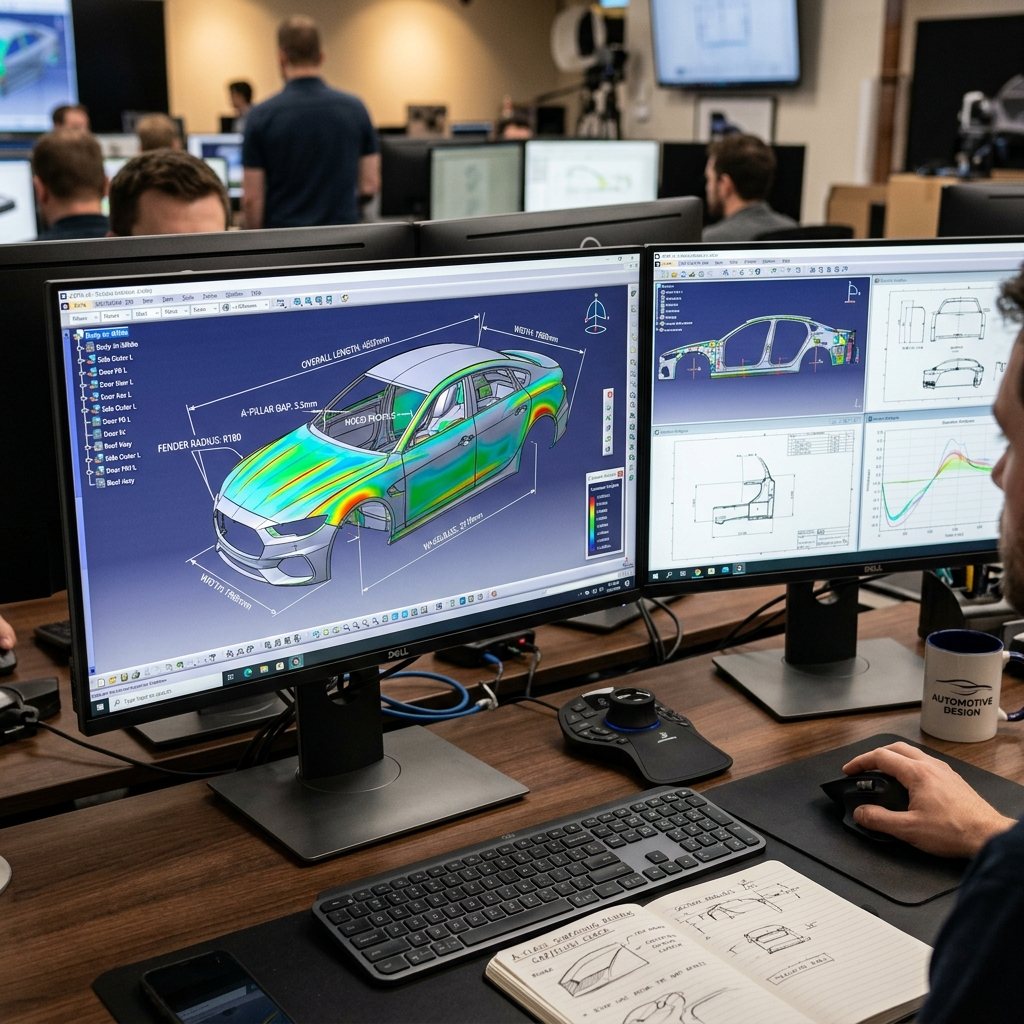
✔️ Automotive — car body styling, engine design, and crash simulation all done in CAD before a physical prototype is built
✔️ Medical Devices — designing prosthetics, surgical tools, implants, and even custom hearing aids
✔️ Fashion & Apparel — pattern design and 3D garment visualization to reduce fabric waste
✔️ Game Design & Animation — character modeling and environment creation for movies and video games
✔️ 3D Printing — almost every 3D-printed object starts as a CAD file before it's sent to the printer
◆ Popular CAD Software in 2026 — Which One Should You Start With?
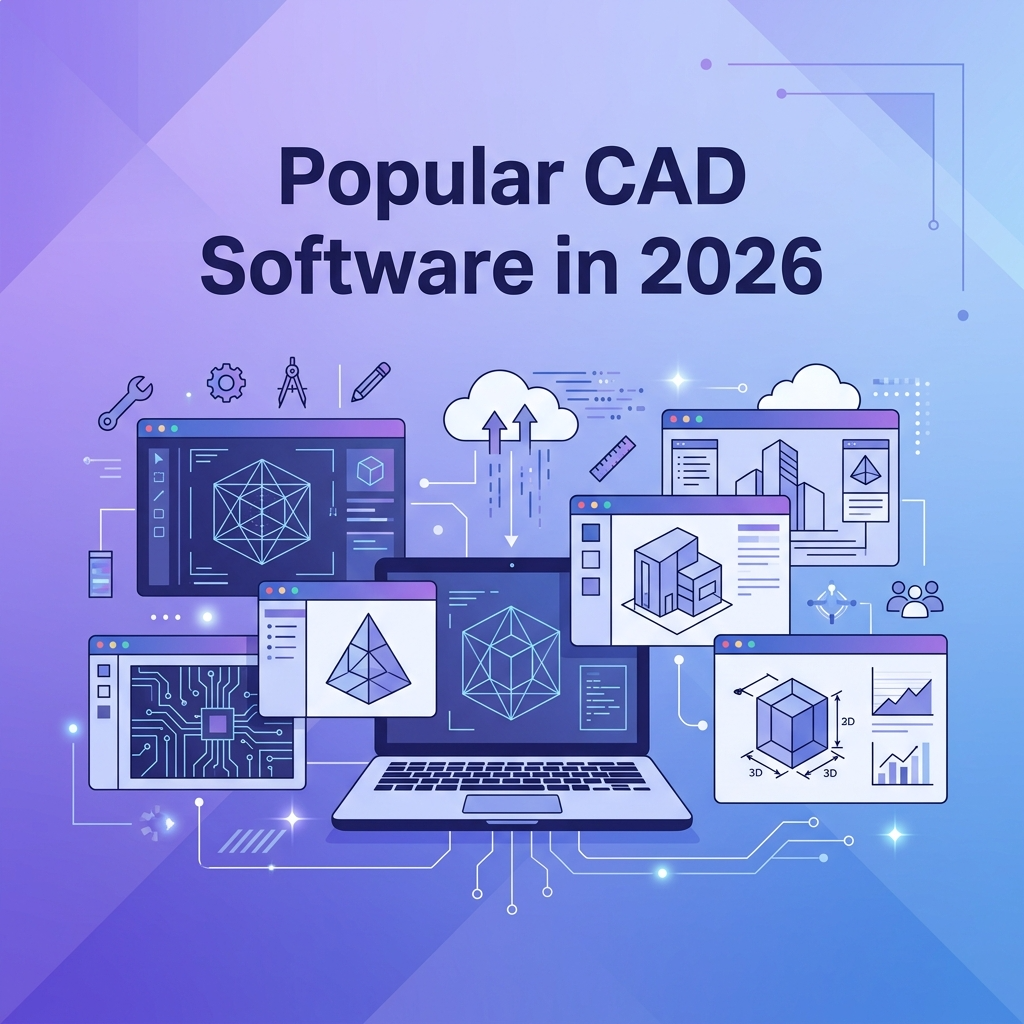
There are a LOT of CAD programs out there, and picking the right one as a beginner can feel overwhelming. Here's a straightforward comparison of the most popular options in 2026, including free ones that are perfect for learning.
▸ My Honest Recommendation for Beginners
If you're an absolute beginner with zero experience, start with Tinkercad. It runs in your browser, it's 100% free, and within an afternoon you can be building simple 3D shapes. Once you get comfortable with the concepts of 3D space and dimensions, move on to Fusion 360 (free for personal use) which is a genuinely professional-level tool that will serve you well as your skills grow.
If your goal is specifically to work in architecture or engineering, then learning AutoCAD is worth the investment of time — it's the most widely used CAD software in those industries. The good news is that students can get it completely free through Autodesk's Education Plan.
◆ How to Get Started with CAD: A Beginner's Roadmap
Ready to actually start learning? Here's a realistic, step-by-step path that works for total beginners — no prior experience needed.

▸ Step 1: Pick Your Software (And Just One)
The biggest mistake beginners make is jumping between different CAD programs. Pick one — Tinkercad if you want the easiest start, or Fusion 360 if you want something with more long-term potential — and stick with it for at least a month. Consistency beats variety every time when you're learning a new tool.
▸ Step 2: Learn the Core Concepts First
Before diving into complex projects, make sure you understand these fundamental ideas that apply to all CAD software: what a coordinate system is (X, Y, Z axes), how dimensions work (units like mm or inches), the difference between 2D sketches and 3D bodies, and how to navigate and orbit a 3D space with your mouse. These concepts are universal — learn them once, and they apply everywhere.
▸ Step 3: Follow a Structured Tutorial (Not Random YouTube)
Random YouTube videos are great for specific questions, but for building real foundations, follow a structured course. Autodesk offers free official tutorials for all their software. Coursera, Udemy, and LinkedIn Learning also have excellent beginner-friendly CAD courses — many available for free or very low cost.
▸ Step 4: Build Small Projects From Day One
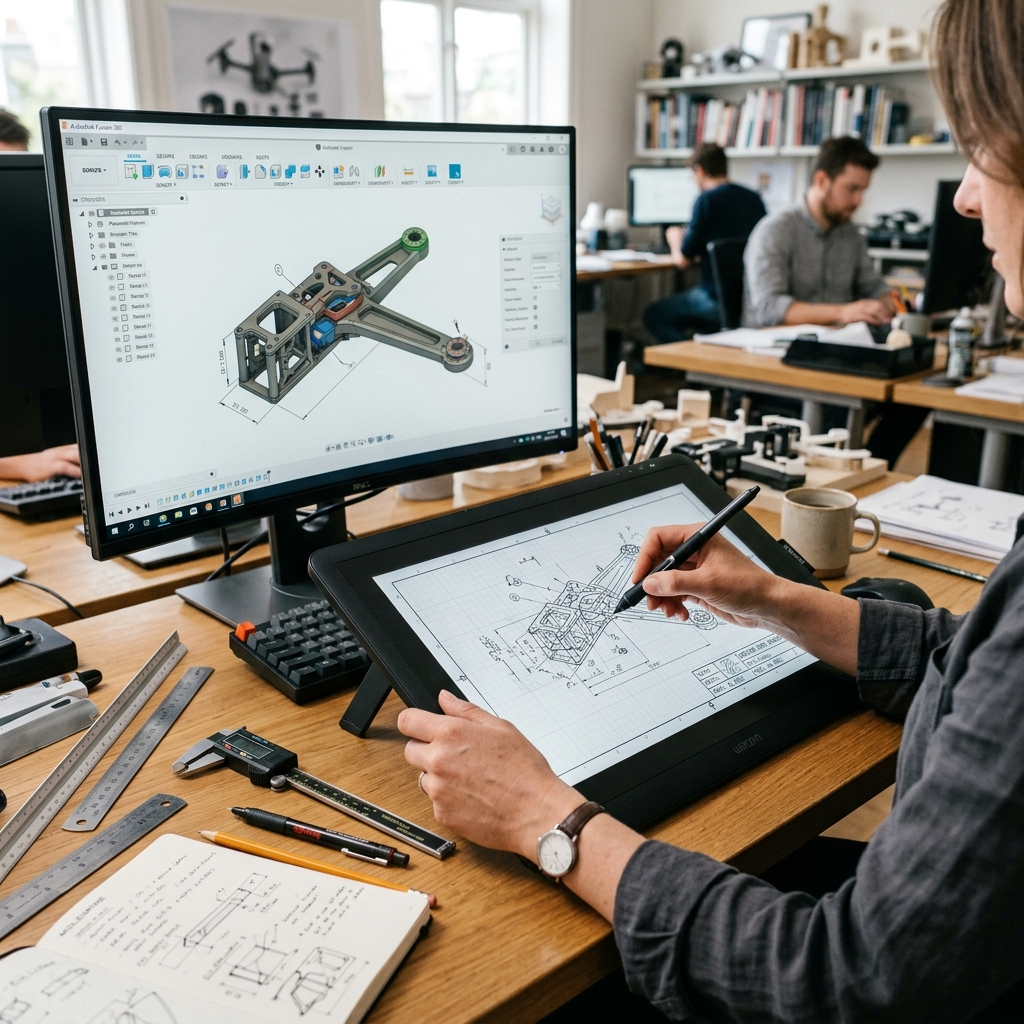
Theory is great, but CAD is a hands-on skill. Even on day one, try to design something simple — a box, a bracket, a name plate. Small practical projects teach you far more than passively watching tutorials. As you progress, try designing things you actually use: a custom shelf bracket, a phone holder, a simple gear. Keeping it personal keeps you motivated.
◆ Frequently Asked Questions About CAD
▸ Do I need a math or engineering background to learn CAD?
Not at all. Basic arithmetic (addition, subtraction, simple measurements) is really all you need to get started. CAD software handles all the complex geometry for you behind the scenes. Many professional CAD users come from backgrounds in design, architecture, or even self-taught hobbyists with no formal technical training.
▸ How long does it take to learn CAD?
You can learn the basics of a beginner-friendly tool like Tinkercad in a single weekend. To become comfortable with a professional tool like AutoCAD or Fusion 360 typically takes 2–3 months of regular practice. Becoming truly skilled — producing complex professional drawings — usually takes 6–12 months. The good news: you can start doing useful, real things within just a few weeks.
▸ Is CAD only for engineers and architects?
Definitely not. CAD is widely used by interior designers, graphic designers, jewelers, furniture makers, hobbyists, medical device creators, game developers, and even fashion designers. If you make or design anything physical, there's almost certainly a way CAD can help you do it better and faster.
▸ What's the difference between CAD and CAM?
CAD (Computer-Aided Design) is for creating the design. CAM (Computer-Aided Manufacturing) is for turning that design into instructions for machines — like CNC mills or 3D printers — to actually manufacture the part. Many modern tools like Fusion 360 combine both CAD and CAM in a single software package, which is one reason they're so popular in manufacturing.
▸ Does learning CAD help with getting a job?
Absolutely. CAD skills are listed as a required or preferred qualification in thousands of job postings across engineering, architecture, product design, and manufacturing. Even a basic level of CAD proficiency can meaningfully improve your resume and set you apart from other candidates in technical fields.
🎬 Wrapping It Up
So, now you know what CAD actually is — no more mystery! Here's the quick summary:
✔️ CAD = Computer-Aided Design — digital design software that replaced hand drawing
✔️ 4 main types: 2D CAD, 3D CAD, Parametric CAD, and Direct Modeling
✔️ Used everywhere: architecture, engineering, automotive, medical, gaming, fashion, and more
✔️ Best free starting tools: Tinkercad (easiest), Fusion 360 (most powerful for free), LibreCAD (2D focus)
✔️ Learning timeline: basics in a weekend, professional comfort in 2–3 months of practice
✔️ No engineering degree needed — just curiosity and the willingness to practice
Pick one free tool, follow a basic tutorial, and build something small today.
Got questions or want a recommendation for your specific field? Drop a comment below 😊
'캐드공부하기' 카테고리의 다른 글
| CAD Tools Compared: Which Software Should You Actually Use in 2026? (0) | 2026.03.17 |
|---|---|
| CAD의 종류와 분야 (0) | 2026.03.13 |
| CAD의 정의와 역사 (0) | 2026.03.13 |
| 치수(Dimension) 기입의 모든 것 - 정확한 도면의 완성 (0) | 2026.03.09 |
| 첫번째 CAD 도면 그리기 - 단계별 실습 튜토리얼 (0) | 2026.03.09 |


